


Uživatelská příručka
Diagramy akordů
Schematické diagramy akordů se zobrazují, když klepnete na akord v zobrazovacím programu písně, chcete-li otevřít Inspektor akordů, nebo pokud zapnete zobrazování schematických diagramů akordů pomocí Nabídky předvoleb stylu. Můžete změnit způsob kreslení schematických diagramů akordů pomocí těchto předvoleb.
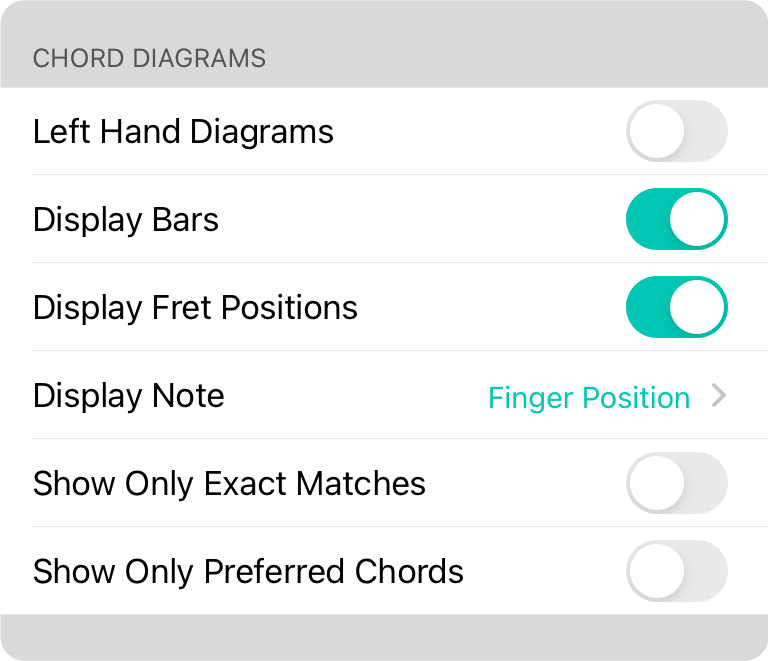
Diagramy pro leváky
Když je toto zapnuto, schematické diagramy akordů se otočí, aby bylo možné левšákům (kterí používají levnůžský nástroj) hrát akord přirozenějším způsobem. Výchozí nastavení je vypnuto.
Zobrazit tyče
Tyče jsou označeny pevnými čarami přes mnoho strun a představují místo, kde se jeden prst používá k stisknutí více strun. To je určeno fingerskými pozicemi definovanými akordovou variací, nebo je určeno automaticky OnSong, pokud nejsou poskytnuty žádné fingerskými informace. Pokud je vypnuto, zobrazují se na strunách pouze tečky. Výchozí nastavení je zapnuto.
Zobrazit pozice pražců
Pozice pražců jsou zobrazeny na levé straně schematického diagramu akordu. Výchozí nastavení je zapnuto.
Zobrazit notu
Spodní část schematického diagramu akordu obsahuje čísla spojená s tečkami v mřížce tvořené pražci a strunami. Mohou představovat jednu ze tří možností:
- Vypnuto nezobrazuje žádné informace ve spodní části schematického diagramu akordu.
- Poloha prstu představuje číslo prstu, který se používá k stisknutí struny. To se pohybuje od 1 do čtyř, což označuje ukazovák, prostředník, prsteník a malíček. Výchozí nastavení.
- Písmeno představuje písmeno noty, kterou hraje struna.
Zobrazit pouze přesné shody
OnSong zobrazuje schematické diagramy akordů v Zobrazovacím programu písní a Inspektoru akordů, které odpovídají akordu bez ohledu na split-basový akord a normalizací variací akordů. Zapnutí tohoto přepínače bude vyžadovat přesnou shodu názvu akordu pro zobrazení diagramu.
Zobrazit pouze preferované akordy
Když jsou schematické diagramy akordů zobrazeny v schematickém diagramu akordu v zobrazovacím programu písně, akordy v písni se automaticky spárují s výchozími schematickými diagramy akordů na základě jejich názvu. Většina hudebníků zná běžné akordy, takže zapnutí tohoto přepínače bude zobrazovat schematické diagramy akordů pouze pro akordy, které si konkrétně vyberete v Inspektoru akordů.


